To manage multiple phones on one car stereo, first, pair each device individually by enabling Bluetooth pairing mode on your stereo and connecting through each phone’s Bluetooth menu. Once paired, you can switch between devices using the stereo controls or menu options, assigning specific phones for calls or music. Keep devices organized and within range for easy access. If you want to optimize your setup and learn more about smooth progressions, there’s plenty to explore.
Key Takeaways
- Pair each phone individually with the stereo, enabling quick recognition and switching between devices.
- Use the stereo’s device list and controls to select the active phone for calls or audio streaming.
- Assign specific phones for calls or music to streamline management and reduce confusion.
- Keep Bluetooth connections active and within range for seamless device switching.
- Regularly update device firmware and familiarize yourself with stereo controls for efficient multitasking.

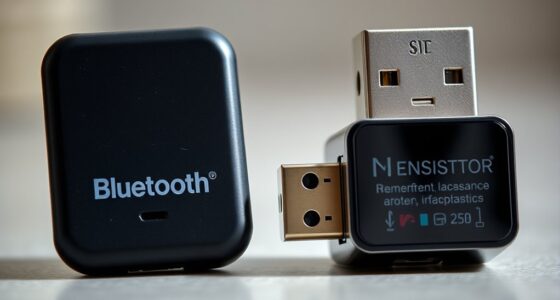
Juggling multiple phones on a single car stereo might seem challenging, but with the right setup, it becomes straightforward. The key lies in understanding Bluetooth pairing and how to switch audio sources seamlessly. Most modern car stereos support multiple Bluetooth connections, allowing you to connect more than one device at a time. To get started, you’ll want to pair each phone individually with your stereo. This process generally involves putting your stereo into Bluetooth pairing mode and then selecting it from your phone’s Bluetooth menu. Once paired, your stereo should recognize each device, ready to switch between them as needed.
Most modern car stereos support multiple Bluetooth connections for seamless device switching.
When managing multiple phones, the main concern is how to switch audio sources smoothly. Many stereos enable quick audio source switching via dedicated buttons or menu options. For example, if you’re listening to music from one phone and a call comes in on another, you’ll want to switch the audio source without disconnecting or reconnecting devices. This can usually be done through the stereo’s interface, selecting the desired device from a list of paired Bluetooth devices. Some systems even support automatic switching, where the stereo detects active audio streams and switches accordingly, but this feature isn’t universal.
To make things easier, familiarize yourself with your stereo’s controls. If it has a touchscreen, navigating to the Bluetooth menu will show you all connected devices. From there, you can select which device’s audio to play or pause. If your system uses physical buttons, look for options labeled “Source,” “Input,” or similar, which allow you to toggle between connected devices. Setting up profiles or assigning specific devices to certain functions might also help streamline the process, especially if different drivers have their preferred phones.
Another tip is to keep your phones organized. For example, designate one phone for calls and another for music. This way, you won’t have to switch between devices for different purposes, reducing confusion. Also, make certain each phone’s Bluetooth is active and within range when you need to change audio sources. If you experience lag or connection drops, re-pairing or resetting the Bluetooth connection often resolves these issues.
In essence, managing multiple phones on a car stereo boils down to understanding Bluetooth pairing and mastering audio source switching. With a little practice, you’ll find it easy to move between devices smoothly, keeping everyone connected and entertained on every drive. Additionally, consulting your stereo’s user manual can provide specific instructions tailored to your system’s features.
Frequently Asked Questions
Can Multiple Phones Connect Simultaneously to One Car Stereo?
Yes, multiple phones can connect simultaneously to your car stereo through Bluetooth pairing, but connection stability varies. Most stereo systems allow only one active connection at a time, meaning you might need to disconnect one device to connect another. Some advanced systems support multiple device pairing, but they often struggle with connection stability. To guarantee smooth use, prioritize devices you frequently use and manage Bluetooth connections carefully.
How Do I Prioritize Which Phone Connects First?
Imagine your car stereo as a busy conductor, ready to pick up the first Bluetooth pairing that signals. To prioritize which phone connects first, access your stereo’s settings and set Priority settings for each device. Pair phones in the desired order, then assign a priority level. The stereo will recognize your preferred device first, ensuring seamless connection every time you hop in, without the hassle of manual reconnects.
Is There a Limit to the Number of Phones Supported?
There usually isn’t a strict limit to the number of phones supported, but Bluetooth range and device compatibility matter. Most car stereos can pair multiple devices, though only one can connect actively at a time. Keep in mind, if phones are out of Bluetooth range, they won’t connect or stay connected. Check your stereo’s specifications for exact compatibility details, and confirm your phones support the necessary Bluetooth profiles.
How Do I Switch Between Different Phones Quickly?
To switch quickly between different phones, you should prioritize your devices in Bluetooth settings. First, disconnect the current device if needed, then select the next phone from the list of paired devices. If your stereo supports device prioritization, set your most-used phones to higher priority. This way, your stereo automatically connects to the preferred device, making switching seamless and efficient during your drives.
Will Connecting Multiple Phones Affect Audio Quality?
Connecting multiple phones is like juggling fire; it can cause Bluetooth interference and affect audio quality. You might notice occasional sound drops or delays if devices aren’t properly synchronized. To keep your audio crisp, make sure only one device streams at a time or disconnect unused phones. Proper management and interference reduction help maintain clear, synchronized audio, so your music stays smooth despite your busy car stereo.
Conclusion
Managing multiple phones on one car stereo might seem tricky, but with a bit of organization, it’s doable. You’ll avoid the chaos of tangled cables and missed calls, turning your car into a seamless communication hub. Think of it as juggling flaming torches—challenging but totally manageable when you stay focused. Keep your devices in sync, name them clearly, and stay patient. Soon, you’ll feel like a tech wizard, effortlessly commanding your entire fleet of phones while cruising down the highway.