
To add Apple CarPlay to your older car without buying a new one, you can install a compatible aftermarket head unit or retrofit kit that supports wireless or wired CarPlay. External adapters and devices also offer seamless integration without major changes. Make certain your vehicle’s electronics are compatible, and consider professional installation for the best results. If you keep exploring, you’ll discover detailed steps to upgrade your system smoothly and enjoy modern connectivity.
Key Takeaways
- Use external CarPlay adapters that connect via Bluetooth or HDMI to add wireless or wired CarPlay functionality.
- Retrofit your existing head unit with a compatible aftermarket infotainment system designed to support CarPlay.
- Install a new head unit with built-in CarPlay support for a seamless, factory-like integration.
- Utilize wireless CarPlay kits or external devices for easy, non-invasive upgrades without replacing the original system.
- Consult a professional installer to ensure proper setup, wiring, and compatibility for reliable performance.
Understanding Your Vehicle’s Compatibility
Before attempting to install Apple CarPlay in your older car, it’s important to determine if your vehicle is compatible. Check your car’s make, model, and year to see if it supports factory integration with modern infotainment systems. Some vehicles are inherently compatible due to built-in support, while others may require additional hardware. Look for signs like existing touchscreen displays or factory-installed multimedia systems that could facilitate CarPlay integration. If your vehicle lacks these features, it may not support CarPlay without significant modifications. Verifying vehicle compatibility helps you avoid wasting time and money on upgrades that won’t work. Doing this research first ensures you choose the right retrofit solution tailored to your car’s specific setup and factory integration capabilities. Additionally, understanding your vehicle’s factory compatibility features can help streamline the installation process. Consulting your owner’s manual or manufacturer resources can provide specific information about your vehicle’s infotainment system compatibility. Knowing how your car’s existing electronic systems function can also assist in planning the necessary upgrades. Checking for software update options can sometimes unlock compatibility with newer infotainment features without additional hardware.
Choosing the Right CarPlay Retrofit Kit
Choosing the right CarPlay retrofit kit is essential to guaranteeing a seamless upgrade for your older vehicle. You want a kit that offers reliable wireless connectivity and maintains high audio quality, so your drive remains enjoyable. Consider compatibility with your car’s existing systems and whether the kit supports features you need. Budget options might save money but could compromise connection stability or sound clarity. On the other hand, premium kits often provide better wireless performance and crisp audio. Additionally, paying attention to connectivity standards can help ensure your system remains compatible with future devices and updates. Ensuring your kit supports wireless protocols can significantly improve the stability and range of your connection as technology evolves. Being aware of upgradability options can also help future-proof your investment and keep your system current, especially as technological standards continue to advance. Moreover, selecting a kit with future-proofing features can save you from frequent upgrades and ensure long-term compatibility.
Installing a CarPlay-Enabled Head Unit
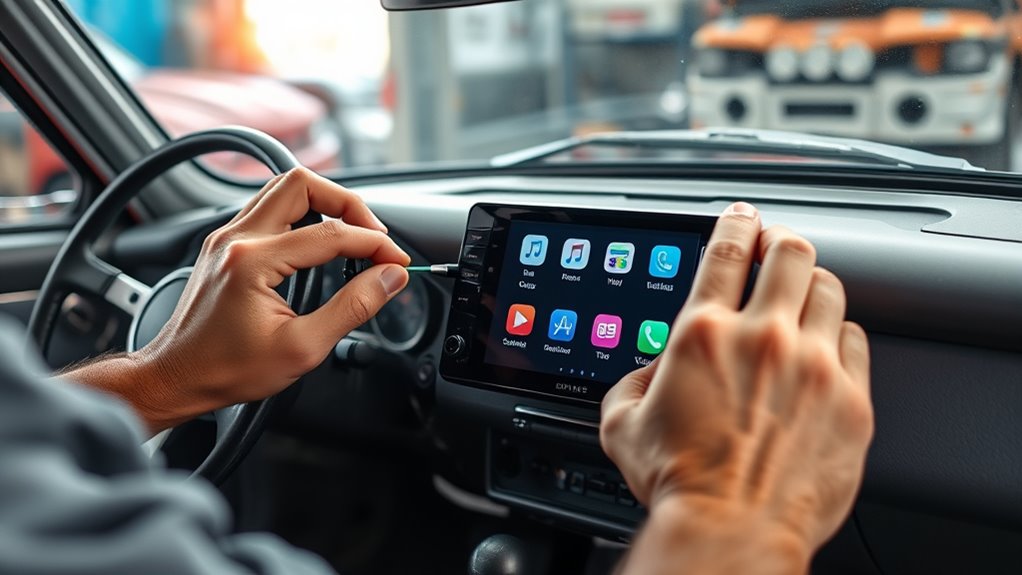
Installing a CarPlay-enabled head unit transforms your older vehicle into a modern, tech-savvy car. This upgrade enhances vehicle safety by providing a clearer, more centralized display for navigation and calls, reducing distractions while driving. When choosing your head unit, consider how it fits with your vehicle’s existing dashboard to avoid clutter and maintain aesthetic modifications. Proper installation guarantees secure mounting and connection, which prevents potential hazards. Many units come with features like voice control and touchscreens, making your drive safer and more convenient. Keep in mind, a professional installation can help preserve your vehicle’s interior look and ensure all wiring is correctly managed. This upgrade not only modernizes your car but also improves safety and aesthetic appeal simultaneously.
Using Wireless CarPlay Adapters
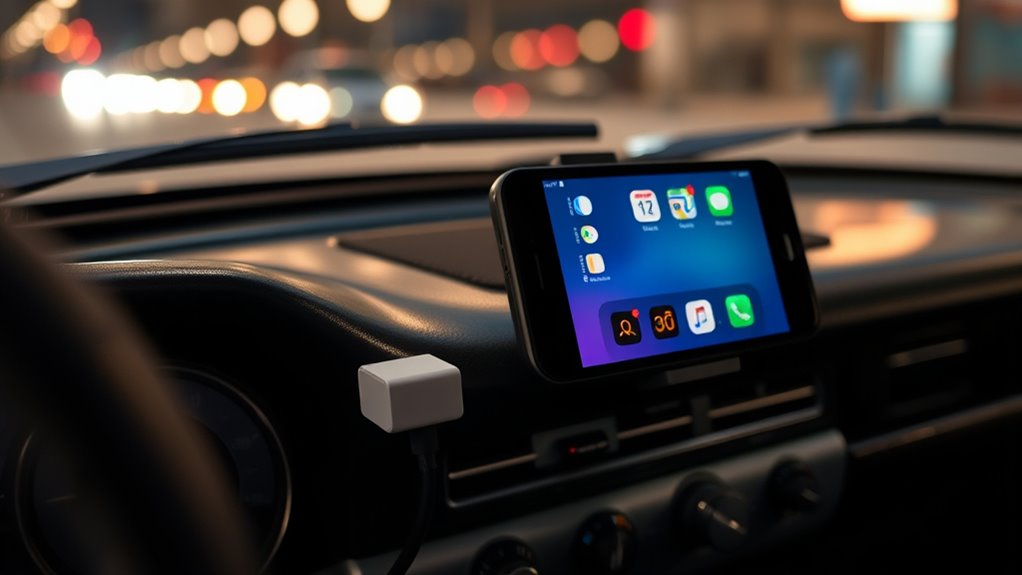
Wireless CarPlay adapters allow you to enjoy the benefits of CarPlay without the hassle of connecting your iPhone with a cable every time you get in your car. These adapters provide wireless compatibility, enabling your iPhone to connect seamlessly to your vehicle’s infotainment system. They work with factory integration, meaning you don’t need to replace your existing head unit. Instead, you set up the adapter once, and it connects automatically when you enter your car. This makes accessing navigation, music, and messages more convenient without cluttering your dashboard with cords. Most adapters support quick pairing and stable connections, ensuring a smooth experience. With wireless CarPlay adapters, you get all the functionality you want, plus the ease of wireless convenience. Reliable connection is key to enjoying uninterrupted use while driving. Additionally, choosing an adapter with easy setup can enhance your overall experience, making integration effortless and more reliable. Ensuring your adapter supports secure pairing helps protect your data and privacy during use. Incorporating wireless technology into your vehicle’s setup can further improve your driving experience by reducing cable clutter and enhancing convenience.
Connecting Your Smartphone for Seamless Integration

Once your wireless CarPlay adapter is set up, connecting your smartphone becomes straightforward. To guarantee seamless integration, follow these steps:
- Activate Siri or voice commands on your phone to easily control music, navigation, and calls without distraction.
- Use your car’s display or voice prompts to select apps like Maps, Messages, or Spotify for instant access.
- Confirm that your apps are compatible and properly linked to your CarPlay system for smooth app integration.
- Ensure your smartphone’s connectivity settings are optimized, such as enabling Bluetooth and Wi-Fi, to maintain a stable connection.
- Additionally, familiarize yourself with wireless connection protocols to troubleshoot any connectivity issues and ensure consistent performance. Knowing how Bluetooth and Wi-Fi standards operate can help you diagnose and resolve common connection problems quickly, especially when dealing with interference and signal strength concerns.
Troubleshooting Common Installation Issues
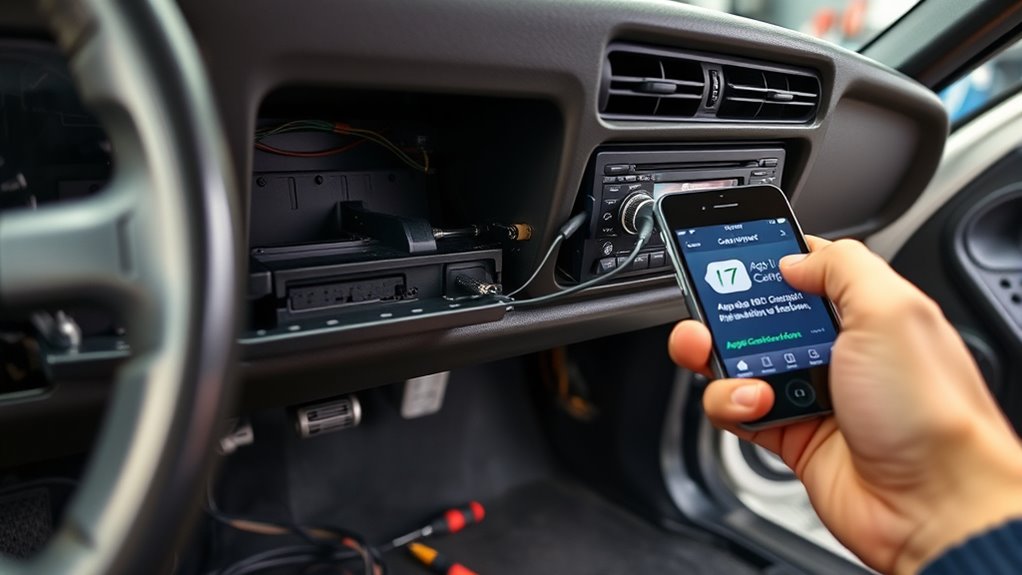
Even with careful setup, you might encounter issues during installation that can disrupt your CarPlay experience. One common problem involves vehicle wiring; ensure all connections are secure and correctly matched to avoid power or data transfer issues. If your CarPlay isn’t responding, double-check the wiring harnesses and adapters. Additionally, touchscreen calibration can sometimes be off, causing difficulty selecting options or *browsing* menus. To fix this, recalibrate your touchscreen following your device’s instructions, often through the settings menu. Also, verify that your aftermarket unit is compatible with your vehicle’s wiring and that all firmware is up to date. Regularly inspecting your vehicle’s electrical system can help prevent such issues. Ensuring your vehicle’s electrical connections are well-maintained can also minimize wiring problems. Checking the installation instructions thoroughly before beginning can prevent many common setup errors. For instance, reviewing the wiring diagram specific to your vehicle model can help identify potential issues early. Troubleshooting these issues early can save you time and frustration, helping you enjoy seamless Apple CarPlay integration. For added reliability, consider checking the compatibility requirements of your aftermarket system before installation.
Enhancing Your Car’s Audio System for Better Sound
Upgrading your car’s audio system can considerably improve your overall listening experience with Apple CarPlay. To boost audio quality, consider these three steps:
Enhance your CarPlay experience with affordable upgrades like new speakers, amplifiers, and sound deadening materials.
- Replace Factory Speakers: Upgrading to high-quality speakers enhances clarity and bass, making your favorite tunes sound richer.
- Add an Amplifier: An amplifier provides cleaner sound and more power, reducing distortion at higher volumes.
- Install Sound Deadening: Applying sound deadening materials minimizes road noise, allowing you to enjoy clearer audio without turning up the volume.
- Additionally, selecting high-quality speakers that match your vehicle’s specifications can ensure optimal performance and longevity.
Focusing on speaker upgrades and improving the sound system not only elevates your CarPlay experience but also makes every drive more enjoyable. These adjustments are budget-friendly and effective ways to achieve better sound quality without replacing your entire stereo system.
Maintaining and Updating Your CarPlay System
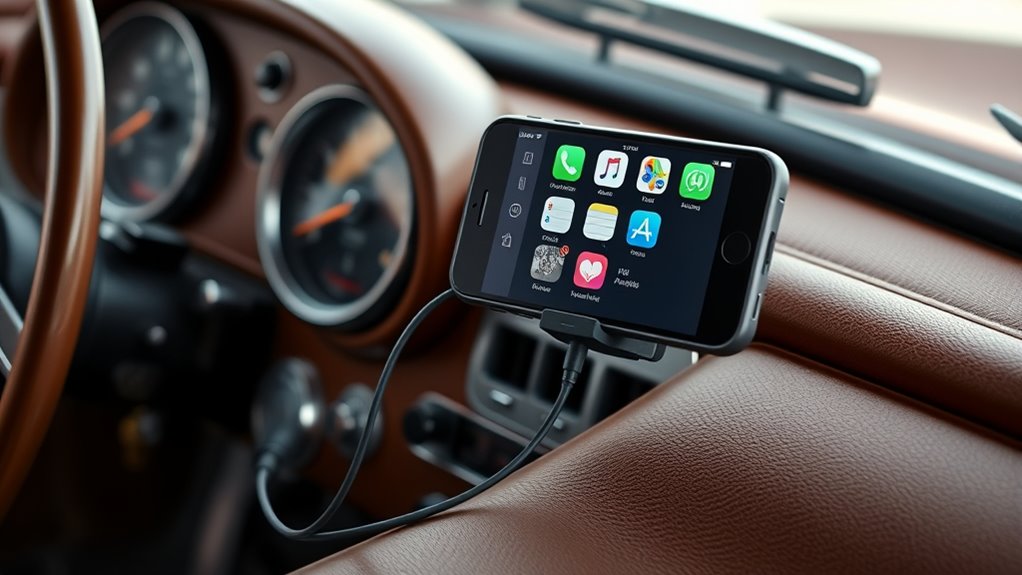
Keeping your CarPlay system up to date guarantees it runs smoothly and securely. You should regularly check for firmware and software updates, which can improve performance and add new features. If your car’s built-in system is outdated, external CarPlay devices can provide an easy upgrade option.
Updating Firmware and Software
To guarantee your Apple CarPlay system continues to function smoothly, regularly updating its firmware and software is essential. Updates improve features like voice command accuracy and enhance screen mirroring stability. To keep your system current, follow these steps:
- Check for updates via your iPhone’s Settings > General > Software Update, ensuring your device and system are compatible.
- Connect your iPhone to your car’s USB port or wireless connection, then follow prompts to install available updates.
- Restart your car and iPhone after updating to ensure changes take effect and enjoy improved system performance.
Staying current helps fix bugs, enhances voice command responsiveness, and keeps screen mirroring seamless, offering a better overall CarPlay experience.
Using External CarPlay Devices
Using external CarPlay devices offers a practical way to enjoy Apple CarPlay in older vehicles that lack built-in support. These devices connect to your car’s existing infotainment system via HDMI or Bluetooth, enabling screen mirroring of your iPhone’s display. Once connected, you can access apps through your car’s screen, use voice recognition for hands-free commands, and control playback easily. Many external devices support touch interaction or voice commands, making driving safer and more convenient. Regular updates help guarantee compatibility with your iPhone and improve features. To maintain your system, keep the firmware current and check for software updates from the device manufacturer. This approach lets you enjoy a seamless CarPlay experience without replacing your car’s original stereo system.
Frequently Asked Questions
Can I Retrofit Carplay Into Any Older Vehicle Model?
Retrofit your older car with Apple CarPlay like adding a fresh coat of paint—you can do it, but it’s not always straightforward. You can install aftermarket kits, but compatibility checks are vital first. Not every vehicle supports these upgrades, so research your car’s make and model carefully. If it’s compatible, a professional installation guarantees everything works smoothly, giving you modern connectivity without buying a new car.
How Long Does the Installation Process Typically Take?
The installation process usually takes between one to three hours, depending on your car’s make and model. The installation timeline is fairly quick, but the complexity can vary; some vehicles require additional wiring or modifications. If you opt for a professional installation, expect it to be streamlined. For DIY enthusiasts, guarantee you have the right tools and patience, as the complexity might extend the process.
Will My Existing Stereo Speakers Support Carplay Audio Quality?
Your existing stereo speakers can support CarPlay audio quality if they’re in good condition and compatible with your vehicle’s system. Most factory speakers provide decent audio, but high-quality sound depends on speaker quality and setup. If you notice low audio quality, consider upgrading your speakers for better clarity and bass. Ensuring your speakers are compatible and well-maintained helps you enjoy seamless, crisp audio with Apple CarPlay in your older car.
Is Professional Installation Necessary for a Successful Retrofit?
Is professional installation necessary for a successful retrofit? Not always. If you have moderate technical skills, you might handle the process yourself, considering aftermarket compatibility and installation complexity. However, for a seamless, reliable setup, professional installation guarantees proper integration with your vehicle’s existing systems. Do you want to risk potential issues, or prefer peace of mind? Ultimately, weigh your comfort with DIY projects against the benefits of expert installation.
What Are the Costs Involved Compared to Upgrading to a New Car?
Upgrading to an aftermarket head unit with Apple CarPlay typically costs between $300 and $700, depending on features, while buying a new car can cost thousands more. You might face compatibility issues with older models, which can add to installation costs. Professional installation ensures proper setup but increases expenses. Overall, retrofit costs are considerably lower than purchasing a new vehicle, making it a budget-friendly way to enjoy CarPlay.
Conclusion
Getting Apple CarPlay in your older car is easier than you think—you just need to find the right setup and follow the steps carefully. Whether you choose a retrofit kit or wireless adapter, you can turn your car into a connected haven. Think of it as giving your ride a fresh coat of paint; it revitalizes your driving experience. Now, with a little effort, you’ll be cruising with modern tech at your fingertips in no time.