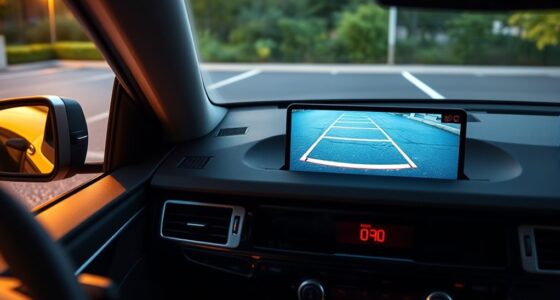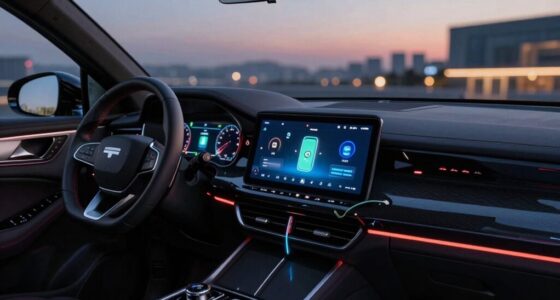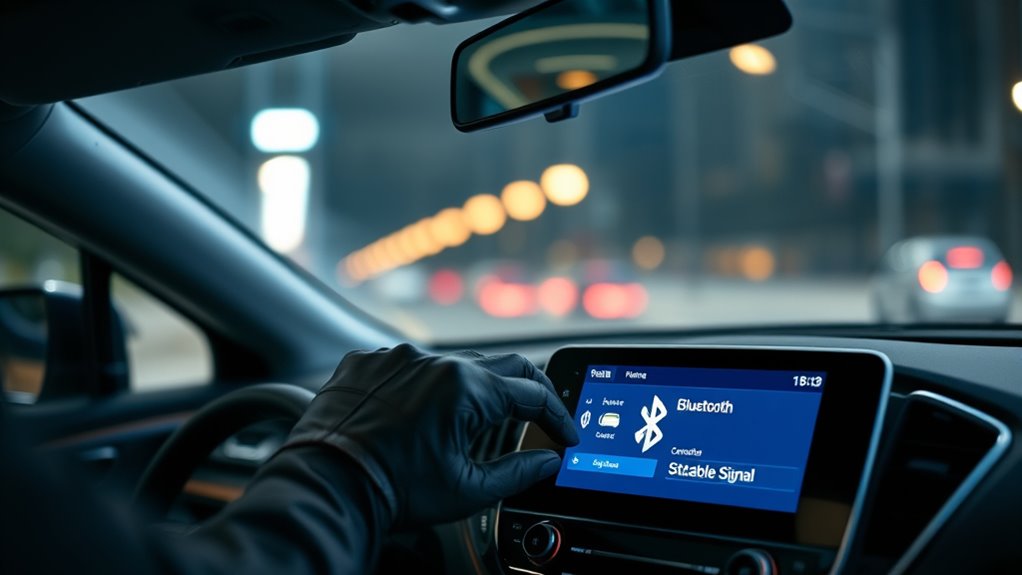

If you’re experiencing Bluetooth issues with your car, start by ensuring your device and vehicle are compatible and that both have the latest software updates. Reset Bluetooth on your device and put your car in pairing mode, keeping the devices close. Remove old pairings and try pairing again using the correct PIN, like 0000 or 1234. For persistent problems, check voice command settings or consult your manual—more tips are just a few steps away.
Key Takeaways
- Verify device compatibility and update firmware for both phone and vehicle to resolve connection issues.
- Reset Bluetooth on your device and ensure the vehicle is in pairing mode before reconnecting.
- Remove old device pairings and keep Bluetooth visibility enabled on your device.
- Set the phone as the primary device for voice commands and check microphone placement.
- Consult vehicle manual or support if persistent issues occur, and avoid multiple devices connecting simultaneously.
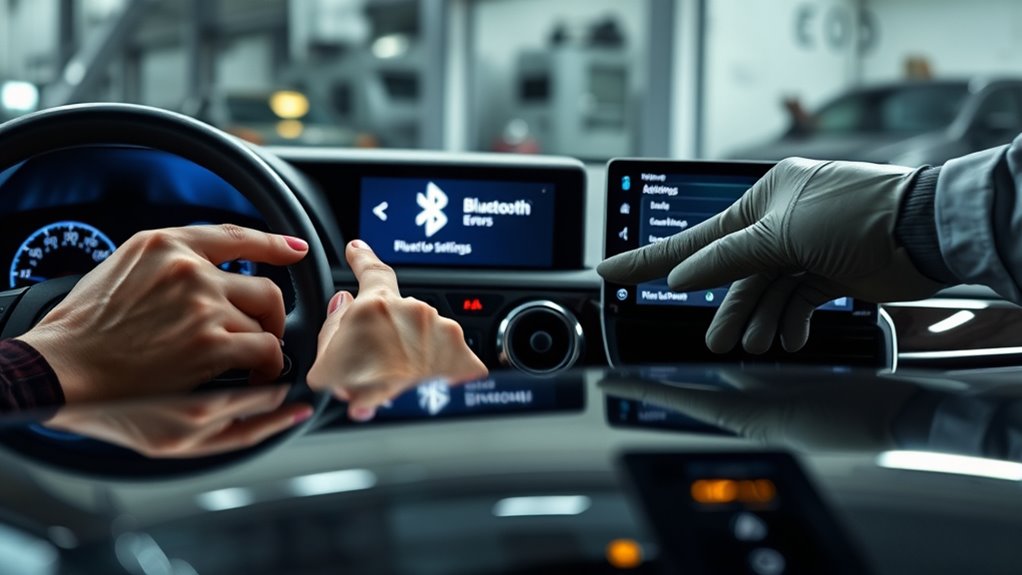
Bluetooth connectivity issues can be frustrating, especially when you need your devices to work seamlessly. Nothing’s more annoying than trying to use your car’s Bluetooth system for hands-free calls or music, only to be met with constant disconnections or failed connections. The good news is that most of these problems are fixable with a few simple steps. A common cause of these issues is difficulty with device pairing or voice commands not registering properly. When your device doesn’t pair correctly, it can prevent smooth communication between your phone and car, leading to dropped calls or audio cutouts.
Bluetooth issues can disrupt calls and music; simple steps can restore seamless device pairing and voice command function.
To start, verify your device is compatible with your car’s Bluetooth system. Sometimes, updates to your phone’s software or the car’s firmware can cause compatibility issues. Before troubleshooting further, check for any available updates and install them. Next, turn off Bluetooth on your phone and then turn it back on. This simple reset can often resolve minor glitches that interfere with device pairing. If your car’s Bluetooth system has a dedicated pairing mode, make sure it’s active. Usually, this involves pressing and holding the Bluetooth button or browsing through the system’s menu. Follow the manufacturer’s instructions carefully to confirm your device enters pairing mode correctly.
When pairing, keep your phone’s Bluetooth visibility turned on and stay close to your vehicle. Sometimes, if there are multiple devices trying to connect or if your phone has a long list of saved devices, it can cause confusion. Remove any old or unused device pairings from your phone and your vehicle’s system to prevent conflicts. Once in pairing mode, select your device from the list of available connections. If prompted for a PIN, usually “0000” or “1234,” enter it exactly. Successful pairing should be confirmed with a notification on both devices.
Voice commands can also be a source of frustration when Bluetooth isn’t functioning properly. If your car’s voice command feature isn’t recognizing your requests, double-check that your phone is set as the primary audio device. Sometimes, the voice assistant needs to be reset or reconfigured to work with Bluetooth. Clearing the cache or resetting voice command settings in your car’s infotainment system can help. Also, ensure your microphone isn’t obstructed and that the system’s settings are configured correctly for voice control. Additionally, understanding deep-sky imaging concepts can help you troubleshoot broader system issues, like interference, which can sometimes affect Bluetooth performance.
In most cases, these simple steps will restore stable Bluetooth connections in your car. Remember, consistent device pairing and clear voice command settings are key. If problems persist, consulting your vehicle’s manual or contacting customer support can provide additional guidance. Fixing Bluetooth issues doesn’t have to take hours—just a little patience and the right approach, and you’ll be back to enjoying hands-free calls and music in no time.
![Nulaxy 54W Bluetooth 5.3 Car Adapter Charger 4-Port Fast Charging [PD36W & QC3.0 18W], Wireless Radio FM Transmitter with Deep Bass Player, 5 Colors LED Backlit, Hands-Free Calling, Support USB Drive](https://m.media-amazon.com/images/I/519DOQ+b5WL._SL500_.jpg)
Nulaxy 54W Bluetooth 5.3 Car Adapter Charger 4-Port Fast Charging [PD36W & QC3.0 18W], Wireless Radio FM Transmitter with Deep Bass Player, 5 Colors LED Backlit, Hands-Free Calling, Support USB Drive
54W High Power Fast Charging, 4-Port Synchronous Charging: Nulaxy Bluetooth car adapter integrates PD36W and QC18W, offering a…
As an affiliate, we earn on qualifying purchases.
As an affiliate, we earn on qualifying purchases.
Frequently Asked Questions
Can Software Updates Improve Bluetooth Connectivity in Cars?
Yes, software updates can improve Bluetooth connectivity in your car. They often include benefits like bug fixes and enhancements that boost connectivity improvements. When you update your car’s software, you help guarantee your Bluetooth system runs smoothly, reducing dropouts and pairing issues. Regular updates keep your system optimized, making it easier to connect and maintain stable Bluetooth connections, so you can enjoy hands-free calling and audio streaming without frustration.
How Does Interference Affect Bluetooth Signals in Vehicles?
Think of your Bluetooth connection like a clear radio signal, but interference can cause static and signal disruption. Radio interference from other electronic devices, like nearby Wi-Fi networks or cell phones, can weaken or block your Bluetooth signals in vehicles. For example, I once lost connection because a nearby microwave caused interference, making my music cut out. To fix this, keep devices away from potential interference sources and make certain your car’s electronics are properly shielded.
Are There Specific Car Models With Known Bluetooth Issues?
Some car models are known for Bluetooth issues, especially those linked to factory recalls or hardware problems. If you own such a vehicle, you might experience connectivity drops or pairing failures. In many cases, the dealership recommends hardware replacements or software updates to fix these issues. Check for recalls on your model and consult your dealer to see if a hardware replacement could resolve your Bluetooth problems quickly.
What’s the Best Way to Reset Bluetooth Settings in My Car?
To reset your Bluetooth settings, you should first access your car’s infotainment system and navigate to the Bluetooth menu. From there, select the option to delete or reset Bluetooth pairing, which clears previous connections and minimizes signal interference. Next, restart your vehicle to refresh the system, then attempt to re-pair your device. This quick reset often resolves connectivity issues caused by outdated settings or signal interference.
How Long Does It Typically Take to Fix Bluetooth Problems?
Fixing Bluetooth problems usually takes just a few minutes if you follow troubleshooting tips and check your maintenance checklist. Start by resetting your Bluetooth connection and updating your car’s software. If issues persist, disconnect and reconnect devices or restart your car’s infotainment system. Most problems resolve within 5-10 minutes, but more complex issues might take longer. Staying proactive with regular maintenance helps prevent these glitches altogether.

COMSOON Bluetooth Receiver for Car, Noise Cancelling 3.5mm AUX Bluetooth Car Adapter, Wireless Audio Receiver for Home Stereo/Wired Headphones, Hands-Free Call, 16H Battery Life – Black+Silver
【Enjoy Wireless Streaming Music】This car Bluetooth adapter can be connected to non-Bluetooth car audio systems, home stereos, speakers,…
As an affiliate, we earn on qualifying purchases.
As an affiliate, we earn on qualifying purchases.
Conclusion
Think of your car’s Bluetooth as a delicate dance partner—sometimes, they stumble or step out of sync. But with a few simple moves, you can lead them back into harmony, restoring the rhythm of seamless connection. When issues arise, remember it’s just a temporary misstep in the dance. With patience and a quick fix, you’ll be back to gliding smoothly down the road, your devices perfectly in sync, like a well-choreographed performance.

AGPTEK Car Speaker with Bluetooth 5.3, Hands Free Phone Kit for Calls, GPS & Music with TF Card Slot, Instant Connect, Siri Google Assistant Support Wireless Car Visor Clip Speakerphone (Black)
【CAR PHONE SPEAKER HANDSFREE】Built-in 3W microphone, based on excellent noise reduction and echo processing technology, will give you…
As an affiliate, we earn on qualifying purchases.
As an affiliate, we earn on qualifying purchases.
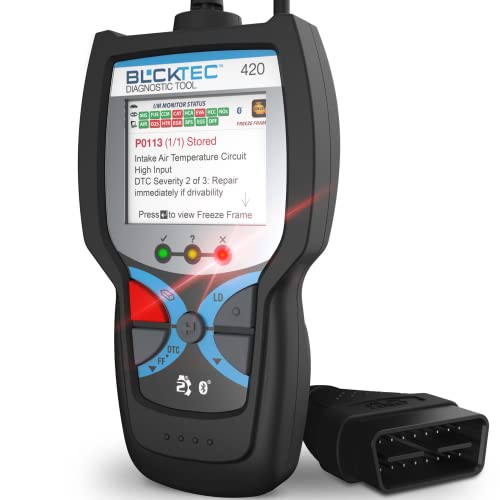
BLCKTEC 420 Bluetooth OBD2 Scanner Diagnostic Tool – Vehicle Code Reader for Car – Clears Check Engine Light – Comes with Premium OBD App On IOS & Android – Works For All Cars 1996 & Newer
[Effortless Diagnosis & Repair] – Harness the full potential of the automotive code reader to quickly identify issues…
As an affiliate, we earn on qualifying purchases.
As an affiliate, we earn on qualifying purchases.